

Below is an example template that mimics a Login flow with multiple steps, including credential capture and two-factor verification.
Template Metadata
- id → Unique identifier for the template.
- info → Provides metadata such as name, author, description, category, and tags.
- template_dir → Points to the directory containing HTML/CSS/JS files for this template, relative of /opt/wifipumpkin3-pro/.
Step-by-Step Flow
Phishportal templates are composed of steps, each representing a page in the captive portal. Steps can capture data, validate inputs, and define the next page to load.Step 1: Login
Validation Rules
-
Username
- Required: Yes
- Length: 3–20 characters
- Allowed characters: letters, numbers,
.,-,_ - Regex:
^[a-zA-Z0-9_.-]{3,20}$ - Error message: “Invalid username.”
-
Password
- Required: Yes
- Length: minimum of 6 characters
- Allowed characters: any
- Regex:
^.{6,}$ - Error message: “Password too short.”
Purpose
These filters enforce proper formatting and help prevent malformed or weak input before advancing to the next step (verify).Step 2: Two-Factor Verification
It asks the user to enter a 6-digit code, resembling an SMS or app-based verification process. The verification step requests a 6-digit code (typically sent via SMS) and validates it using a regex pattern.
Validation Rules
- SMS Code
- Required: Yes
- Length: exactly 6 digits
- Allowed characters: numbers only (
0–9) - Regex:
^[0-9]{6}$ - Error message: “Invalid verification code.”
Purpose
This step ensures the user provides a correctly formatted numeric verification code before proceeding to the final step (success). ###$ Step 3: Success PageDetails
- Method:
GET - Path:
/login_success.html - Template file:
login_successful.html - Capture: Disabled (
enabled: false) - Access: Granted (
grant_access: true)
Purpose
This step displays the final success page and confirms that access has been granted.No additional data is captured in this stage.
Hooks
They can be used to extend functionality, track user behavior, or inject additional logic.
Defined Hooks
- onLoad
- Triggered when the page loads.
- Executes the following scripts in order:
/hooks/fingerprint.js→ collects browser/device fingerprinting data/hooks/behavior.js→ monitors user behavior (e.g., clicks, typing patterns)
Purpose
Hooks provide a flexible way to add custom logic and data collection during the phishing flow without modifying the main templates directly.HTML Files per Step
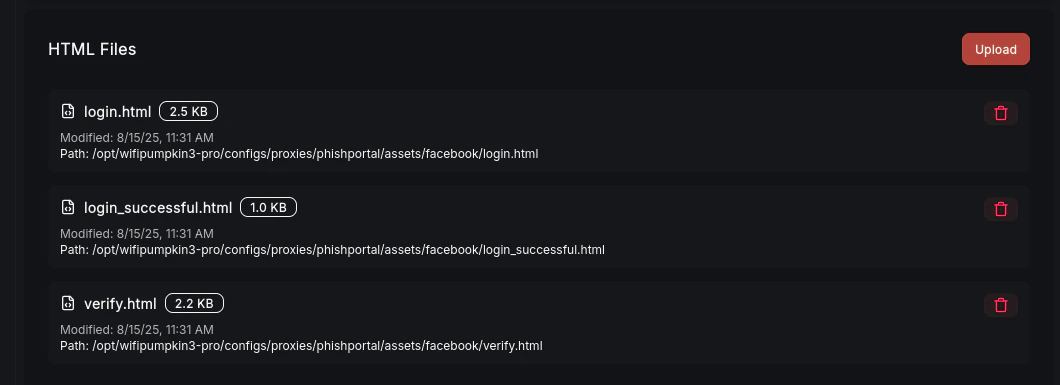
HTML file structure
Each step in the phishing flow is associated with its own HTML template file
Typical File Structure (as shown in the image)
-
login.html (Step 1: Login)
- Path:
/configs/proxies/phishportal/assets/login_example/login.html - Size: ~2.5 KB
- Contains the login form for capturing username and password.
- Path:
-
verify.html (Step 2: Two-Factor Verification)
- Path:
/configs/proxies/phishportal/assets/login_example/verify.html - Size: ~2.2 KB
- Contains the form for entering a 6-digit verification code (
sms_code).
- Path:
-
login_successful.html (Step 3: Success Page)
- Path:
/configs/proxies/phishportal/assets/login_example/login_successful.html - Size: ~1.0 KB
- Displays a confirmation page when the login flow is completed successfully.
- Path:
Notes
- Each template file is linked to a specific step in the YAML configuration (
template_fileproperty). - This separation allows modular control over each step, making it easier to customize the flow or reuse templates for other phishing campaigns.
- The file sizes are usually small because they mostly contain HTML forms and basic styling, not heavy assets.